Language: Português (BR) · Español
Import your IPSC match online
Publish your stage in minutes — from ShootingHouse, WinMSS, or the PractiScore app directly. Paste the URL, upload your .cab, or send the .psc exported on your phone or tablet, review the summary before you go live, and share a full hub with charts, overall, combined results, and heatmaps. Free to browse; sign in only when you confirm.
importar prova IPSC WinMSS ShootingHouse PractiScore PractiScore .psc hub da prova publicar resultados IPSC
ShootingHouse, PractiScore (.psc) & WinMSS — publish in minutes
Import by URL, .psc from the app, or WinMSS .cab, review the summary, and launch charts, overall, combined results, and Match Editor — one link your squad can open instantly.
Free · Sign in only to confirm import
Atalhos destacados
Ferramentas no hub IM ou páginas relacionadas deste guia.
ShootingHouse (URL)
Paste your stage results URL, check for duplicates, and import.
Import via ShootingHousePractiScore (.psc)
Native export from app 1.7.x/2.x (Share → Export Match). PractiScore (.psc) tab in Import Match.
Import via PractiScore (.psc)WinMSS (.cab)
Upload your WinMSS export or PractiScore.com .cab, review athletes, divisions, and region, then confirm.
Import via WinMSS (.cab)Imported matches
Browse published matches or manage imports linked to your account.
Already imported — view matchesO que você encontra nesta página
- Three paths, one hub: ShootingHouse URL, PractiScore .psc from app 1.7.x/2.x, or WinMSS .cab.
- PractiScore .psc: native export Share → Export Match — no PractiScore.com posting required.
- See before you publish: full preview on .psc and WinMSS; ShootingHouse duplicate check.
- Share-ready hub: charts, overall, combined, heatmaps, Match Editor, and athlete search.
- 100% web — phone or desktop, nothing to install.
- Free to import and explore — built for clubs, federations, and competitors.
Resumo para decisão rápida
- Start at https://im.scoring.services/import — ShootingHouse, PractiScore (.psc), and WinMSS (.cab) tabs.
- PractiScore: in the app, Share → Export Match; on the web, PractiScore (.psc) tab → Analyze → Confirm.
- Sign in only to confirm; browsing and public match lookup stay free.
- PractiScore .psc guide: https://im.scoring.services/pages/import-practiscore
What is Import Match
Import Match lets match directors, federations, and athletes publish IPSC stage results on Scoring Services (also known as Hit Factor). Instead of static spreadsheets or PDFs, results become interactive: rankings, athlete comparisons, stage trends, and visual stats. Everything lives at https://im.scoring.services/import with three tabs: ShootingHouse (URL) for Brazilian portal results — paste, verify, import; PractiScore (.psc) for native exports from PractiScore app 1.7.x and 2.x — upload the .psc from Share → Export Match; and WinMSS (.cab) for WinMSS-registered matches worldwide or exports via PractiScore.com — upload, preview, confirm. Both file formats (.psc and .cab) unlock the same hub with charts, overall, combined results, and Match Editor.
ShootingHouse import (URL)
For clubs, organizers, and shooters with results on ShootingHouse. Steps: 1) Open Import Match and stay on the ShootingHouse (URL) tab. 2) Paste the stage URL (e.g. https://www.example.org.br/etapa/resultados-categorias/123/ — with or without www or trailing slash). 3) Click Verify — we tell you if the match already exists. 4) If new, sign in and confirm. 5) Track status (pending, processing, complete) in your import list. 6) Open the match hub for full analytics. You get duplicate checks, eligible reprocessing, and ecosystem integration (search, stats, hub).
PractiScore import (.psc) — app 1.7.x and 2.x
For clubs scoring directly in the PractiScore app (phone or tablet) without PractiScore.com. The .psc file is the native match export with stages, athletes, and scores. Steps: 1) With the match open in PractiScore, go to Share → Export Match and save the .psc. 2) Open Import Match → PractiScore (.psc) tab. 3) Upload the file and click Analyze file. 4) Review name, club, athletes, divisions, and detected country (e.g. BRA); fix region if needed. 5) Sign in and Confirm import. 6) Open the hub — overall, charts, combined, and Match Editor. Ideal for fast publishing after match day. Full guide: https://im.scoring.services/pages/import-practiscore and docs at https://im.scoring.services/docs
PractiScore .psc vs WinMSS .cab
Pick the path that fits your workflow: .psc — direct export from PractiScore app 1.7.x or 2.x; immediate import on the PractiScore (.psc) tab; no PractiScore.com posting required. .cab — WinMSS or PractiScore.com → Export to WinMSS; useful for federations and legacy flows. Both unlock the same analytics hub. For live leaderboard during the match, see /practiscore-integration-ipsc.
WinMSS import (.cab)
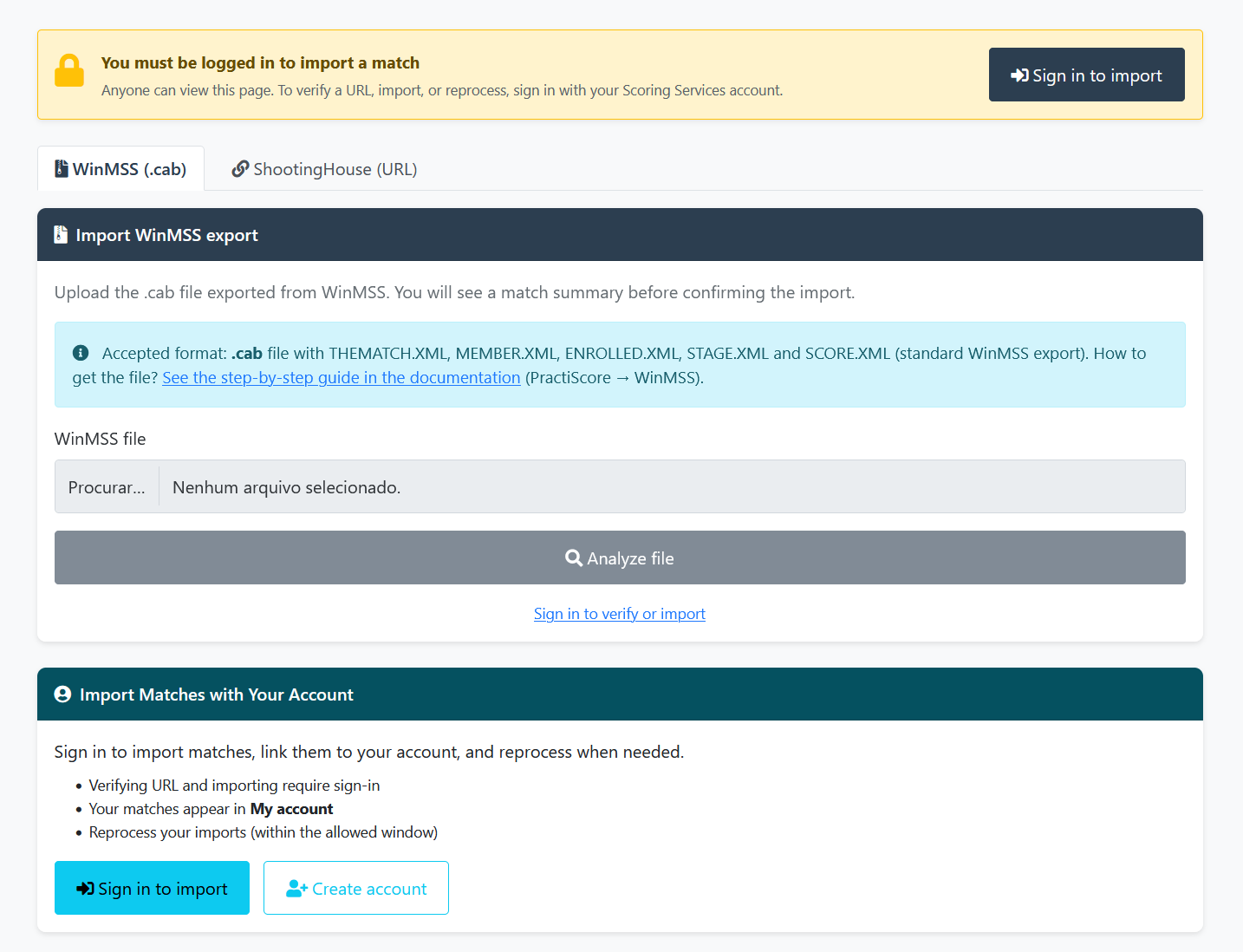
For national and international organizers exporting WinMSS .cab files — ideal for overseas IPSC matches, WinMSS events without a ShootingHouse URL, and fast publishing of finalized scores. We accept .cab files in the WinMSS standard from any compatible system — not only PractiScore. That includes WinMSS itself and other scoring software that exports in this format. Steps: 1) Export standard .cab from WinMSS (max 25 MB). 2) Open Import Match → WinMSS (.cab) tab. 3) Select the file and click Analyze file. 4) Review name, year, athletes, divisions, and region; search and fix region if needed. 5) Sign in and Confirm import. 6) Open View match — charts, overall, combined, and more are ready. Highlights: preview before publish, editable region, duplicate alerts, near-instant availability, and source shown as WinMSS in the hub.
From PractiScore to Scoring Services via WinMSS (.cab) — tutorial with screenshots
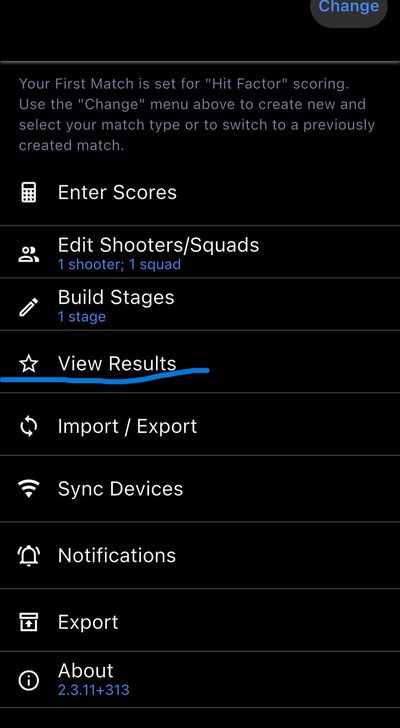
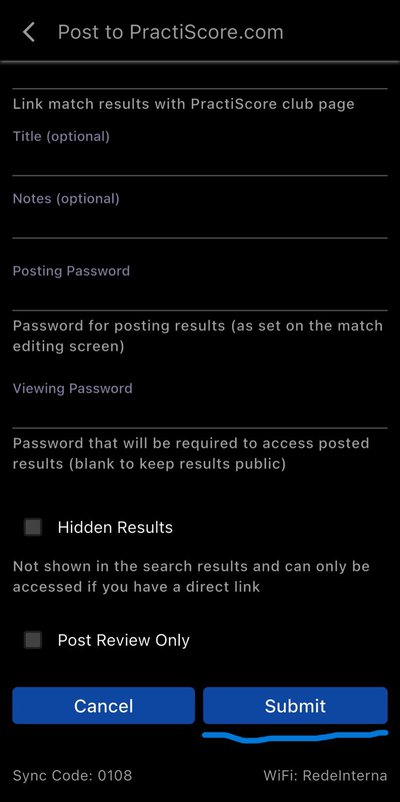
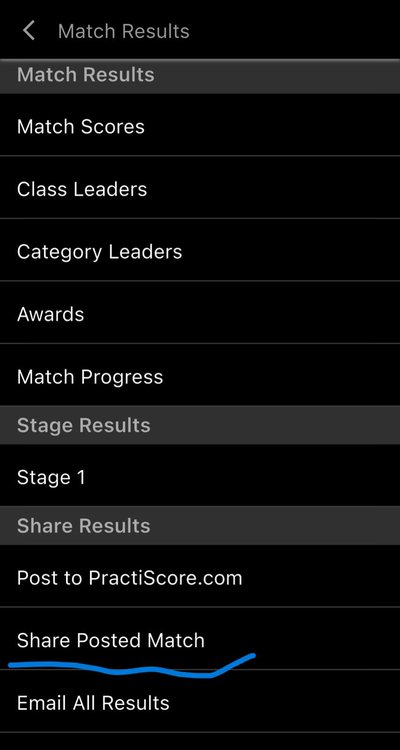
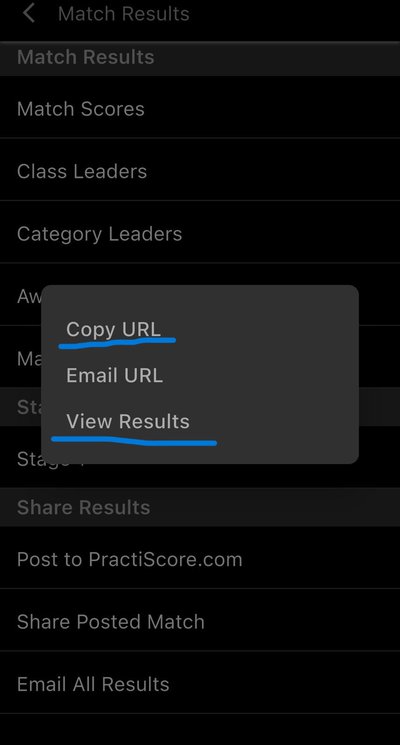
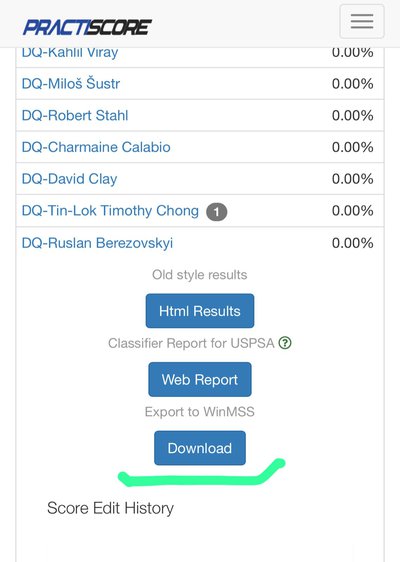
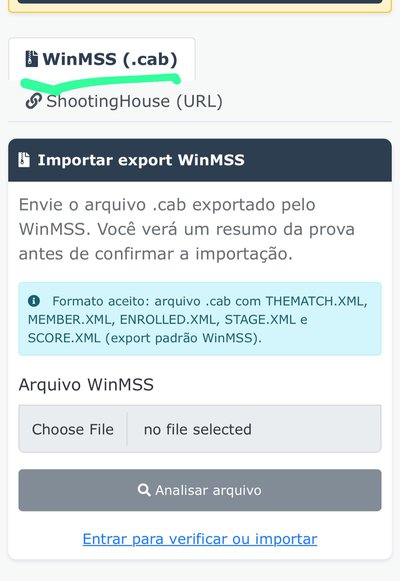
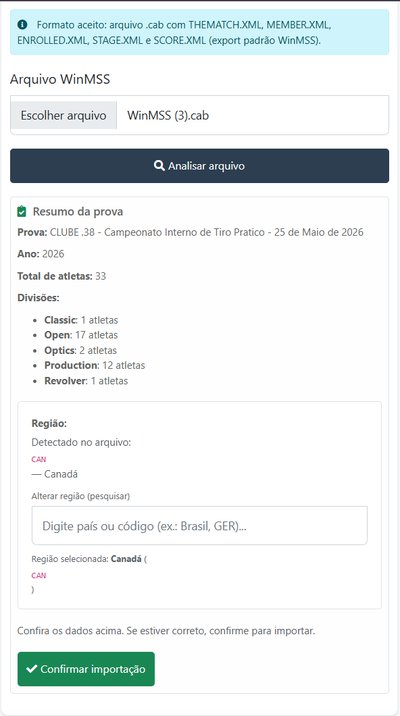
Alternative to direct .psc: post to PractiScore.com and download the WinMSS (.cab) export — useful for federations and teams already on the PractiScore.com → WinMSS flow. Illustrated walkthrough at https://im.scoring.services/docs#tutorial-practiscore-winmss For immediate app import, prefer .psc on the PractiScore (.psc) tab — see https://im.scoring.services/pages/import-practiscore 1) Post to PractiScore.com: in the app, with the match open, tap View Results, then under Share Results tap Post to PractiScore.com and Submit (title and passwords are optional). 2) Copy the URL: under Match Results, tap Share Posted Match, then Copy URL, and open that link on your computer. 3) Download the WinMSS (.cab) file: on the match page at PractiScore.com, scroll to Export to WinMSS and tap Download. 4) Upload to Scoring Services: open Import Match, go to the WinMSS (.cab) tab, choose the file, tap Analyze file (sign-in required), review the summary (name, year, athletes, divisions, and region), and tap Confirm import.
After import — hub and analytics
Your match joins the public catalog with a central hub: athlete search, navigation cards, and stage summary. Available views: comparison charts (up to 4 athletes), Overall ranking, Combined results, performance heatmaps, athletes per stage, best stages, and division stats. Matches tied to your account can be managed in My account (ShootingHouse reprocess per platform rules). More on the hub: /hub-completo-da-prova and /resumo-da-prova-ipsc.
Trust and ecosystem
Part of the Scoring Services / Hit Factor ecosystem. WinMSS import does not replace PractiScore or WinMSS — you still register scores there; we publish and analyze the export. ShootingHouse matches keep their portal as the source. Docs: https://im.scoring.services/docs
Import interface
Three tabs at https://im.scoring.services/import ShootingHouse (URL), PractiScore (.psc), and WinMSS (.cab).
Step-by-step with screenshots: from PractiScore to WinMSS
Scored in the PractiScore app? Follow the illustrated steps with real screens: post to PractiScore.com, copy the URL, download the .cab file, and import into Scoring Services.

Full, always-updated version in the docs: https://im.scoring.services/docs#tutorial-practiscore-winmss
ShootingHouse vs PractiScore (.psc) vs WinMSS (.cab)
| ShootingHouse (URL) | PractiScore (.psc) | WinMSS (.cab) | |
|---|---|---|---|
| Input | Results URL | .psc from app | .cab file |
| Typical use | Brazilian ShootingHouse matches | PractiScore app 1.7.x / 2.x | WinMSS or PractiScore.com |
| PractiScore.com | N/A | Not required | Optional (WinMSS export) |
| Preview | Duplicate check | Full summary before confirm | Full summary before confirm |
| Region | Auto UF/portal when registered | Detected country, editable | Detected IPSC region, editable |
| Availability | After processing | Usually immediate | Usually immediate |
| Source label | Portal / domain | PractiScore | WinMSS |
| Update | Reprocess (with rules) | Upload new .psc | Upload new .cab |
Ferramentas no hub IM
Atalhos diretos para im.scoring.services (lista de provas, importação, busca de atleta, editores e mais).
Todas as funções do hub
Resumo em cards: cada botão leva a uma área específica do IM.
Division statistics
Compare averages and distributions within the same IPSC division.
Athletes by divisionPlatform statistics
Distribution by division, state, match level and macro view of imported data.
Open platform statsIPSC Stage Designer
Draw stages in the browser — WSB, PDF, materials and RO link.
Open Stage DesignerExplore também no guia IPSC
Perguntas frequentes
Apoiadores